BlazePDF
BlazePDF is a desktop PDF reader built for students, combining keyboard-first annotation, image import, and student-oriented print tools.
Overview
BlazePDF is a desktop PDF workspace built for academic reading, annotation, and printing. It targets the document types that dominate a semester: lecture slides, readings, textbook chapters, research papers, and past papers. Rather than spreading work across browser tabs and cloud services, it keeps opening, annotating, searching, and exporting inside a single local application. The company states the reader works offline, requires no account for the desktop app, and leaves files on the student's own computer.
Key Features
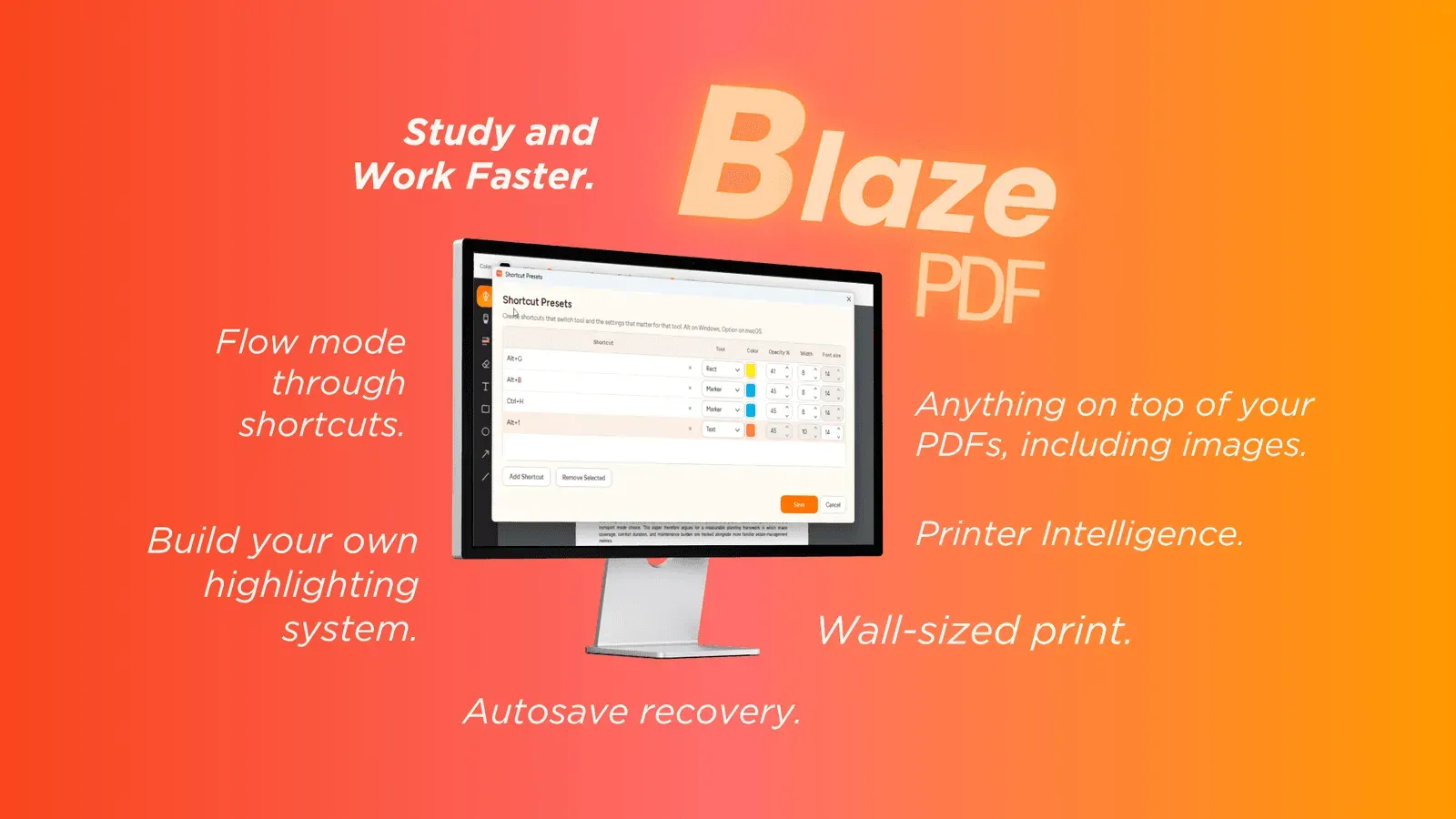
- Flow Mode is a keyboard-first annotation environment that keeps hands on the keys while marking up a document, cutting down the pointer travel that tends to interrupt reading momentum. The mode is positioned as the core interaction model rather than a secondary shortcut layer.
- Word-aware highlighting and tool presets snap markup to text boundaries instead of freehand rectangles, so selections stay tidy when passages span multiple lines. Presets store a color, stroke width, and opacity combination and restore it through one shortcut, which means a consistent personal notation system does not require rebuilding the toolbar for every new note.
- Broad annotation toolkit covering pen and marker strokes, editable text boxes, shapes, arrows, lines, image insertion, erasing, undo, and redo. Images can be placed directly onto a page rather than added through an external editing pass.
- Editable BlazePDF metadata keeps annotation layers changeable when a document is reopened. Markup is not permanently flattened into the page, which matters for students who revisit a paper weeks later and want to revise their notes.
- Smart Duplex and Poster Enlargement address the awkward jobs that ordinary readers ignore. Smart Duplex prepares two-sided output for printers that need a manual second pass and explains how to reload the paper. Poster Enlargement splits one large diagram or oversized page into tiled sheets with a preview of how the pieces fit together.
- Local-first processing where opening, reading, annotating, native text search, and exporting run on the desktop. Optional account and AI OCR features activate only when a user chooses them, and the company states document content is not used to train generalized AI models.
How It Works
A student installs the desktop application and opens a local PDF. Markup happens through Flow Mode or standard pointer tools, annotations are stored as editable BlazePDF metadata, and search helps return to important passages later. Page tools handle blank-page insertion, image import, and reordering. Print jobs route through Smart Duplex or Poster Enlargement, both of which display the plan before output so orientation and assembly mistakes surface early. Export produces a visible PDF, while account and AI OCR features stay inactive until enabled.
Who It's For
The primary audience is university and secondary students carrying heavy reading loads across several courses. It suits learners who annotate densely, print course materials, and prefer a single offline repository over a cloud account. Researchers working through long PDFs may value the search and annotation layers. Because the feature set is tuned to study workflows, professionals needing collaborative review, digital signatures, or enterprise document management may find it narrower than general office software.
Pros & Cons
The Good
- The desktop reader works offline and requires no account, so reading, annotating, and exporting are not gated behind a signup or an internet connection.
- Flow Mode delivers a keyboard-first annotation workflow that reduces reliance on the mouse during sustained markup sessions.
- Annotation layers are stored as editable BlazePDF metadata, allowing markup to be revised when a document is reopened instead of being permanently flattened.
- Smart Duplex and Poster Enlargement solve specific printing problems students face, and both show a plan before output to catch orientation or assembly errors.
- Local processing with opt-in account and AI OCR features, plus an explicit commitment not to train generalized AI models on document content, gives the tool a clear privacy posture.
The Bad
- The product is described as a desktop application only, with no mobile or browser version mentioned for reading on the move.
- Some capabilities, including account services and AI OCR, sit outside the free local reader and depend on optional sign-up.
- The feature set is narrowly tuned to student study habits, which may leave professionals wanting collaboration, signature, or enterprise document features underserved.